
 AssignToMe
Plan your week without picking dates.
Put each task in Today, Tomorrow, a day this week, or later: next week, next month, someday. Hold and drag to replan, swipe to finish. Whatever you don’t get to moves to today on its own, so nothing gets lost.
Now in beta on TestFlight. For iPhone, iPad, Mac and Apple Watch.
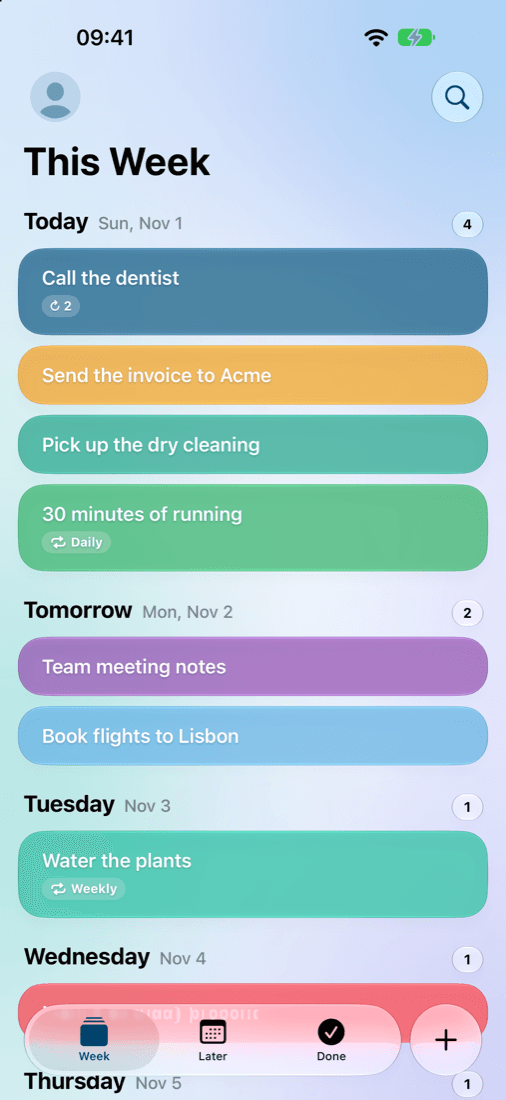
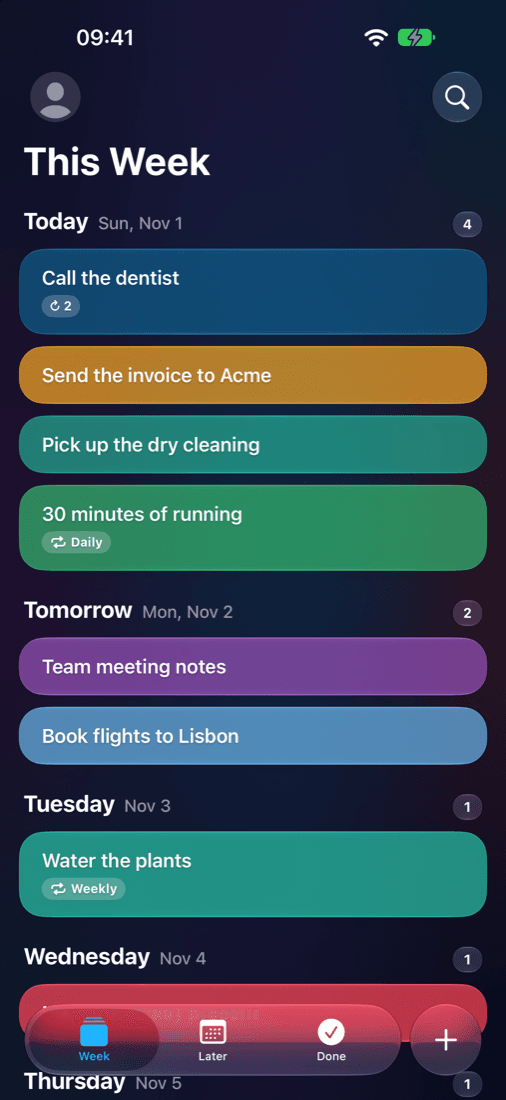
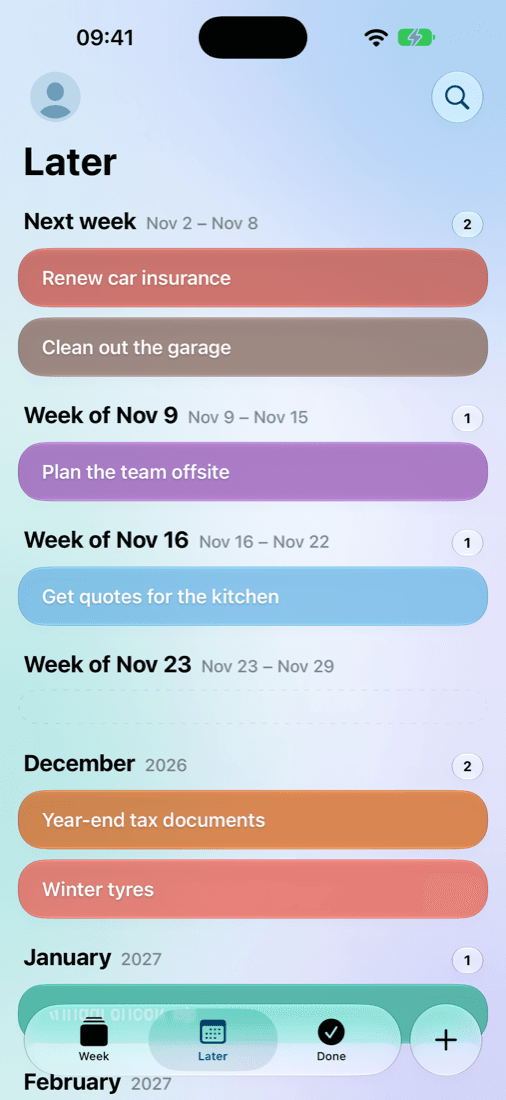
Today, tomorrow, this week, later
Most tasks don’t need a date. They need a rough “when”: now, soon, or some time. AssignToMe plans the way you think, and keeps today short and clear.
This week, day by day
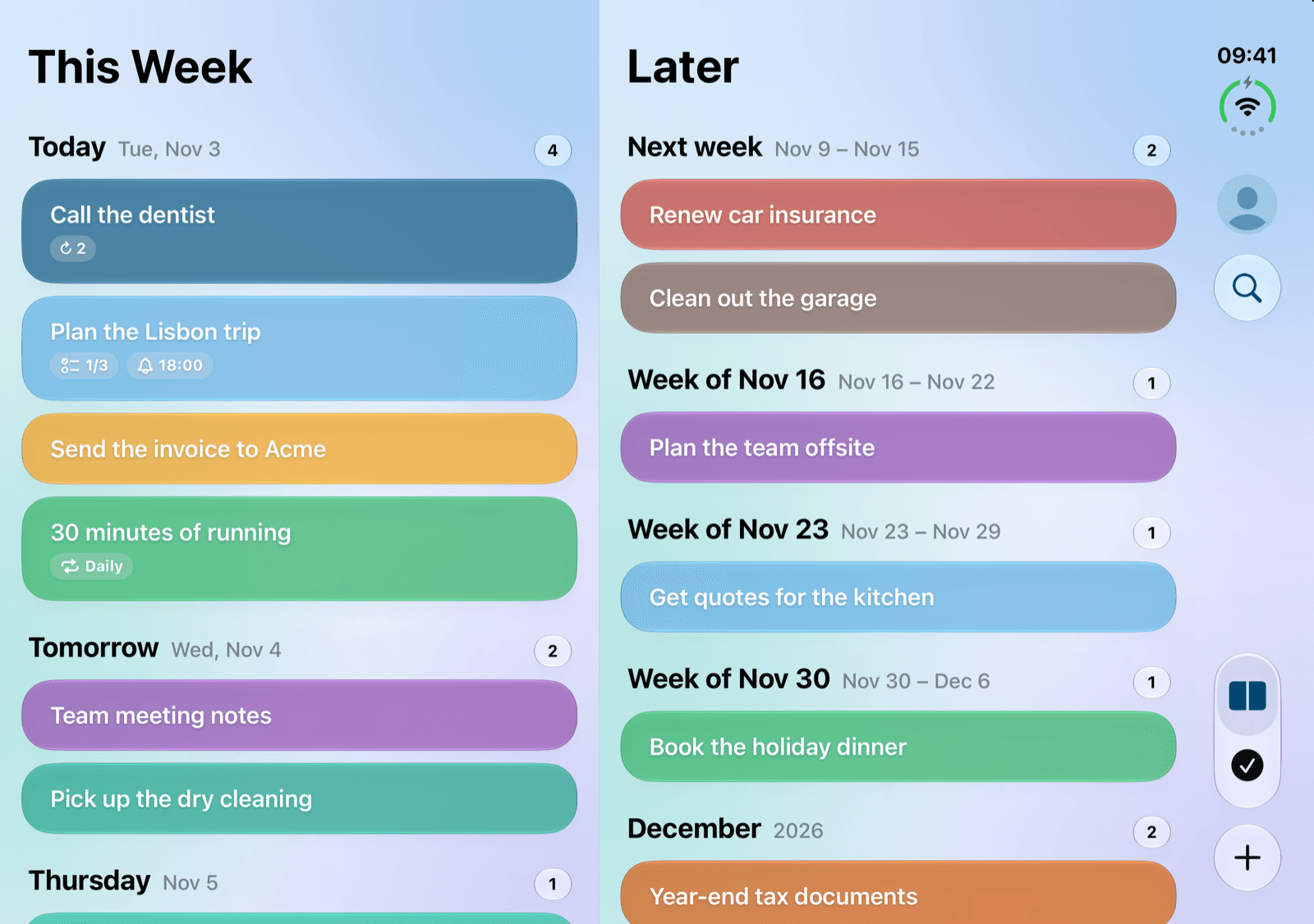
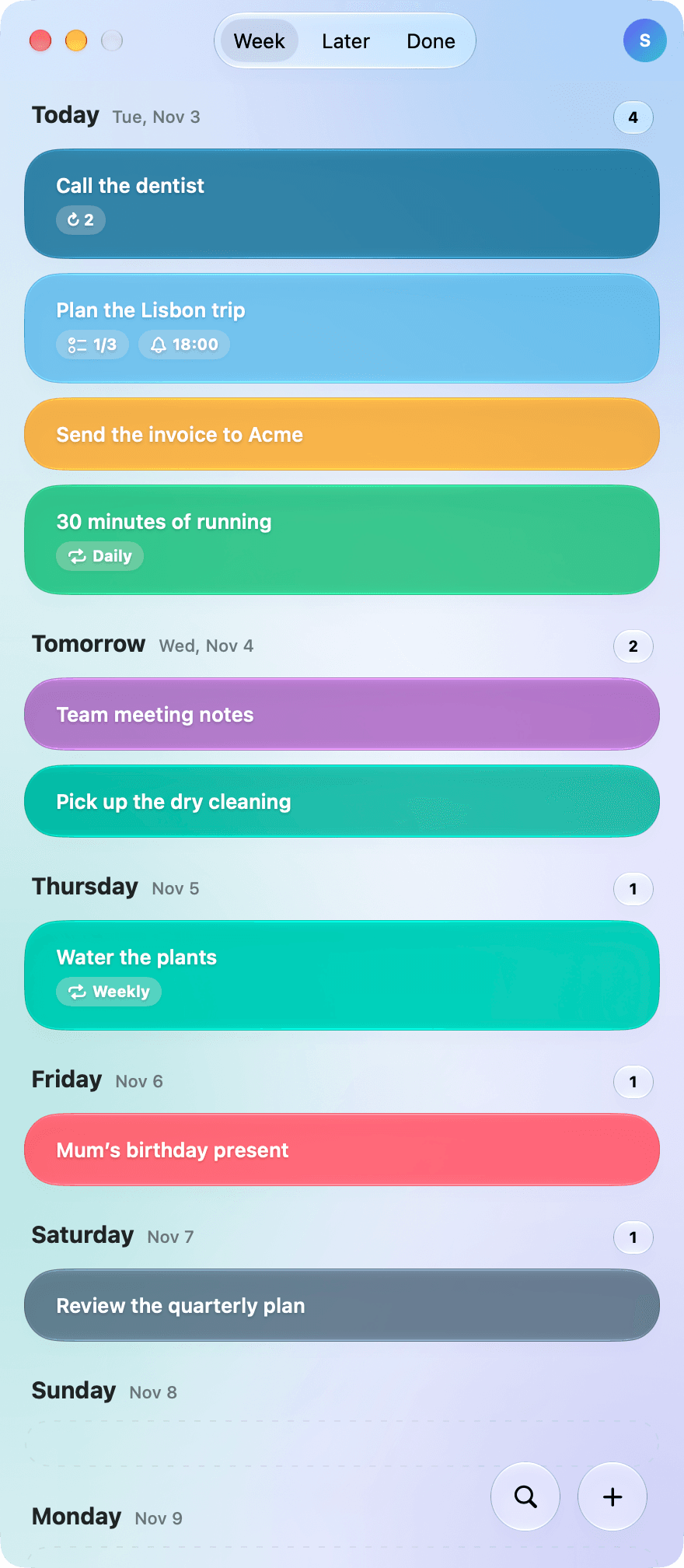
Today, Tomorrow and the rest of the week, each with its own list in the order you choose.
Later, without a calendar
Next week, the weeks after it, the coming months, and Someday for ideas. A task lands on the first workday of its week or month when the time comes.
Nothing gets lost
Unfinished tasks move to the next workday by themselves, with a badge that shows how often they have carried over.
Your workdays
Tell AssignToMe which days you work, and tasks skip the rest.
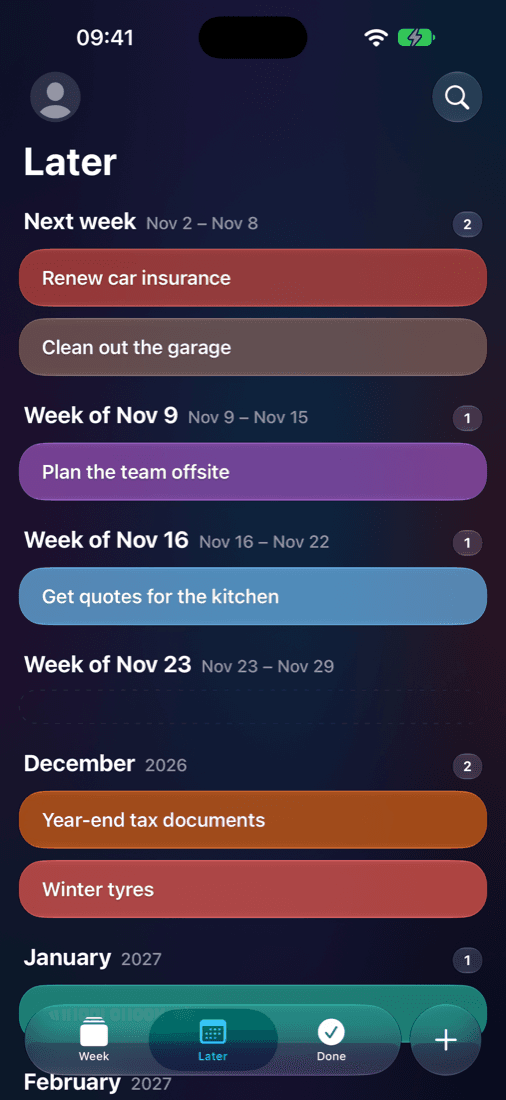
At home on every screen
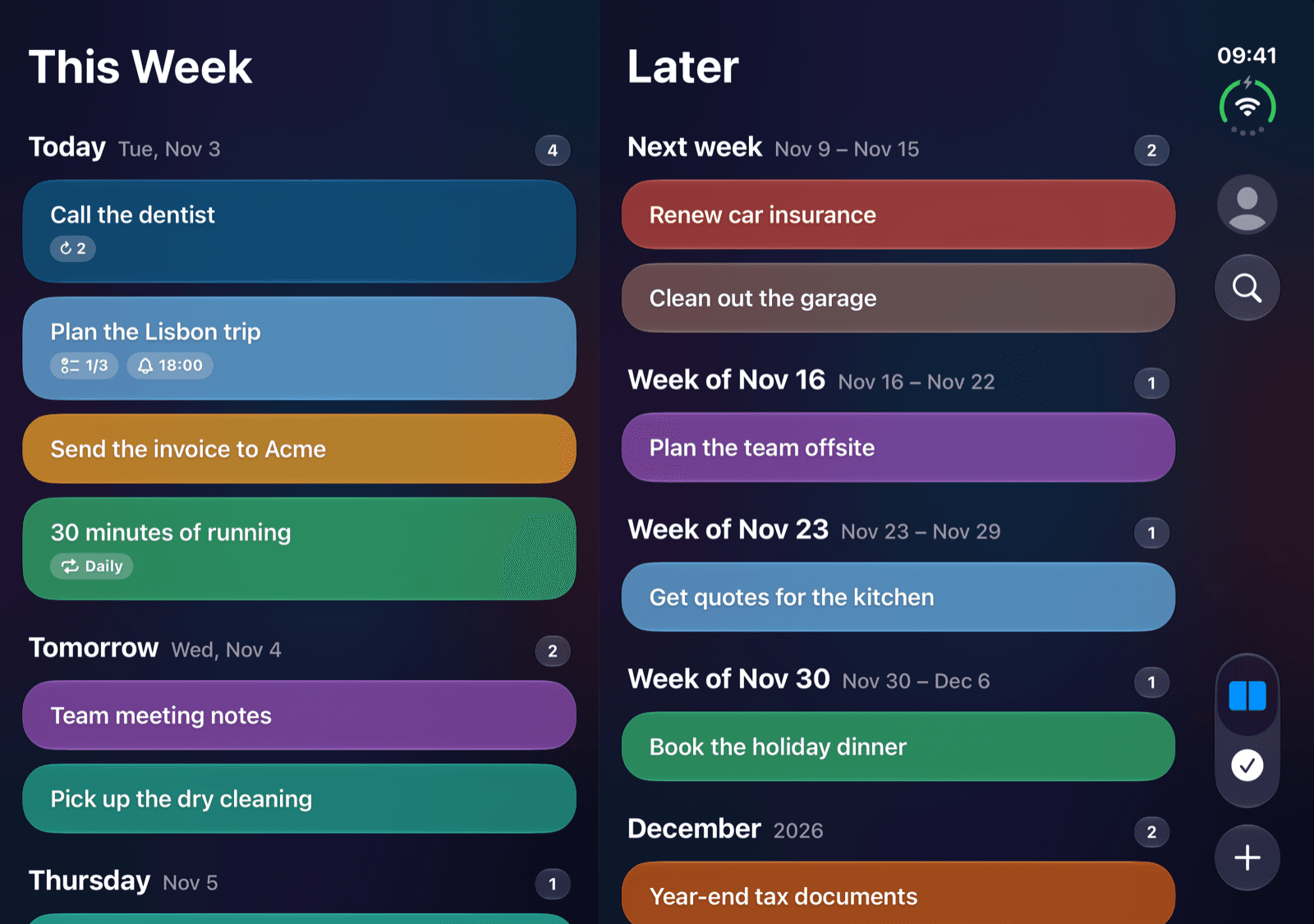
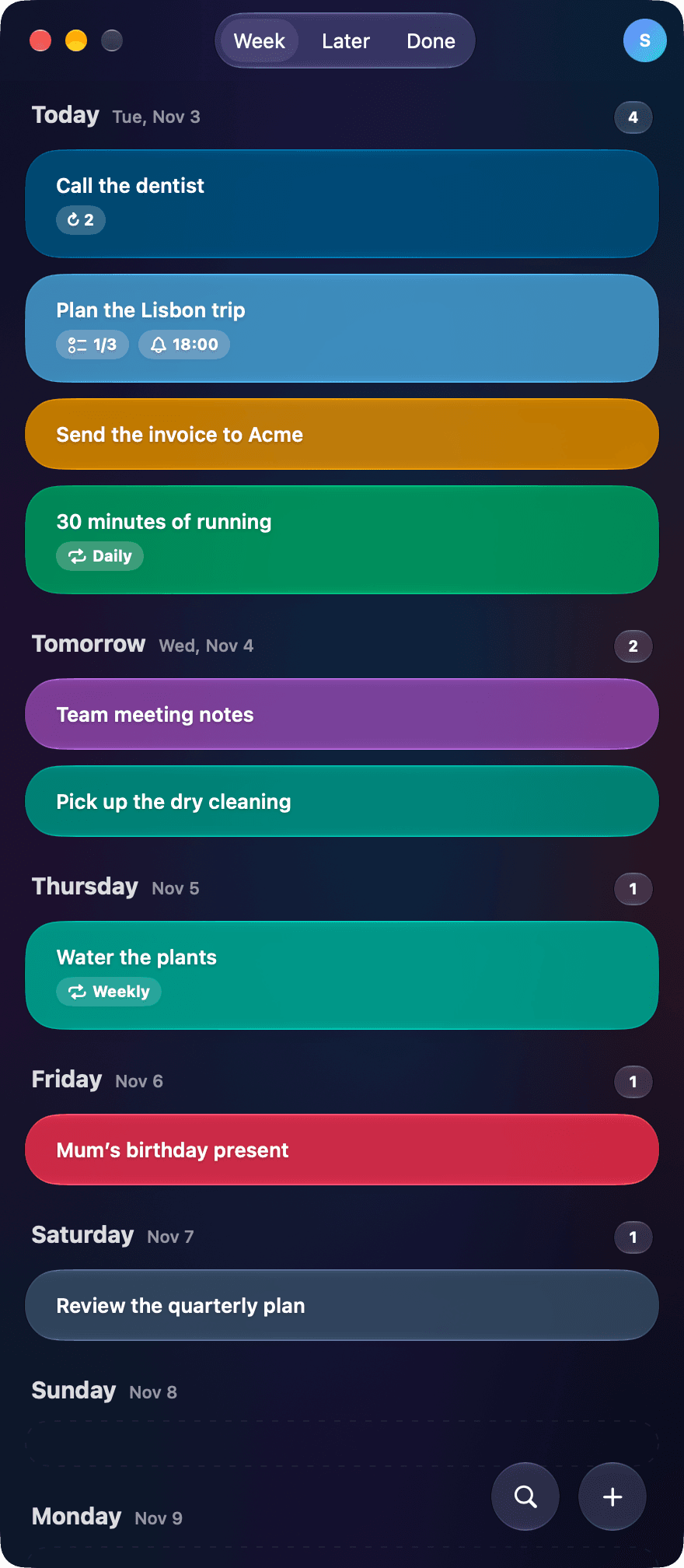
Open iPhone Duo and This Week and Later sit side by side. On the Mac, your week fits in a slim window next to your work, in light or dark.
What AssignToMe does
Drag and drop
Hold a task and drag it to another day, week or month, or up and down by priority.
Repeating tasks
Daily, on weekdays, weekly, every two weeks or monthly. Finish one and the next is waiting.
Reminders and alarms
Pick a time on the task’s day. On iPhone and iPad a task can ring like an alarm.
Widgets and Apple Watch
Today on your Home Screen, Lock Screen, StandBy and Mac desktop, and on your wrist with complications.
On all your devices
Sign in with Apple and your tasks stay in step on iPhone, iPad, Mac and Apple Watch.
AI assistants
With Pro, Claude and other assistants can see, add and plan your tasks, once you allow them.
Start in seconds
- 1
Open the app
No account and no sign-up form. Your tasks stay on your device.
- 2
Add a task
Type it in Today, or add it to any day, week or month, with notes and a checklist.
- 3
Drag, swipe, done
Drag tasks to replan them and swipe right to finish. Sign in with Apple whenever you want sync.
Your tasks are yours
No account needed
Without signing in, your tasks never leave your devices.
Our own servers, no ads
Sync runs on ElephantApps’ own servers in the EU. No ads, no tracking, and we never sell your data.
AI only when you allow it
An AI assistant gets access only after you allow it in the app, and you can disconnect it at any time.
Delete everything with one tap
Delete your account in the app and your data is removed from our servers, immediately.
Simple pricing
Free
$0
- Days, weeks, months and someday
- Drag and drop, carry-over, workdays
- Repeating tasks, reminders and alarms
- Widgets and the Apple Watch app
- Sync across your devices
AssignToMe Pro
$3.99 a month or $24.99 a year
- One week free
- AI assistants: Claude and others over MCP
- Shared tasks and projects, coming later
- Everything in Free
Prices can differ by country. Subscriptions are billed by Apple and you can cancel at any time. Buying works without an account.
Questions
- Do I need an account?
- No. AssignToMe works fully without one, and your tasks stay on your device. Sign in with Apple only if you want your tasks on more than one device.
- Which devices does it run on?
- iPhone and iPad with iOS 26 or later, Mac with macOS 26 or later, and Apple Watch with watchOS 26 or later.
- What happens to tasks I don’t finish?
- They move to the next workday by themselves, to the top or the bottom of the list, as you prefer. A badge shows how many times a task has carried over.
- How do AI assistants work?
- With Pro, add AssignToMe as a connector in Claude or another assistant that supports MCP, then allow it in the app. The assistant can then list, add, move, complete and delete your tasks. You can disconnect it in the app at any time.
Questions? Write to [email protected] · Privacy policy · Terms of use